The Problem Everyone Ignores
You just built a new PC. Or you are setting up a fresh Windows install. Either way, you end up on some motherboard manufacturer's support page downloading fifteen driver packages. Your Downloads folder fills up with ZIP files. You open the first one. Inside: another ZIP. Or a RAR. You extract that too. Now there is a setup.exe buried two folders deep next to a pile of .sfv files and .r00 fragments you do not need.
Multiply that by fifteen. That is thirty manual extractions, fifteen rounds of hunting for the right installer, and fifteen cleanup passes to sweep out all the archive junk. It is tedious, repetitive, and exactly the kind of thing a script should handle.
And it is not just motherboard drivers. Firmware updates, game mods, driver packs, software collections -- anything distributed as nested archives hits the same wall. Double-wrapped ZIPs are everywhere and nobody talks about it because everyone just accepts the pain.
What PeelX Does
PeelX takes a folder full of archives, recursively extracts everything (including archives inside archives inside archives), cleans up all the leftover junk, and drops you into an interactive selector where you can run each installer one by one.
One command:
peelx ~/Downloads/drivers/That is the entire workflow. No flags required, no config files, no setup. Point it at a directory and it handles the rest.
Here is what happens under the hood:
BEFORE                                    AFTER
downloads/                                downloads/
  Gigabyte_LAN_Driver.zip                   Gigabyte_LAN_Driver/
    -> LAN_Driver_v2.1.rar                    setup.exe
        -> setup.exe                          readme.nfo
        -> readme.nfo                       ASUS_Audio_v6.0/
  ASUS_Audio_v6.0.zip                         install.exe
    -> audio_driver.zip                       release.txt
        -> install.exe                      MSI_BIOS_Update/
        -> release.txt                        flash.exe
  MSI_BIOS_Update.7z                          info.nfo
    -> bios_v1.4.rar
        -> flash.exe
        -> info.nfo

  15 archives, nested 2-3 deep              Clean folders, ready to run
  + .sfv, .par2, .r00-.r99 clutter          All archives and junk removed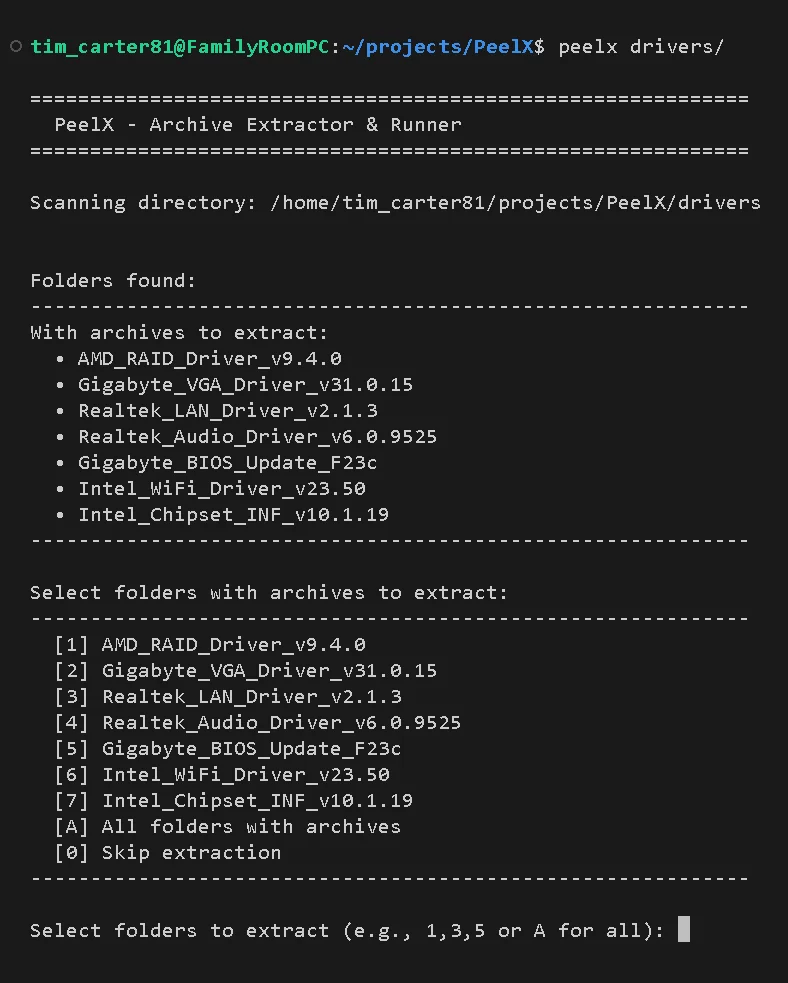
Recursive Extraction
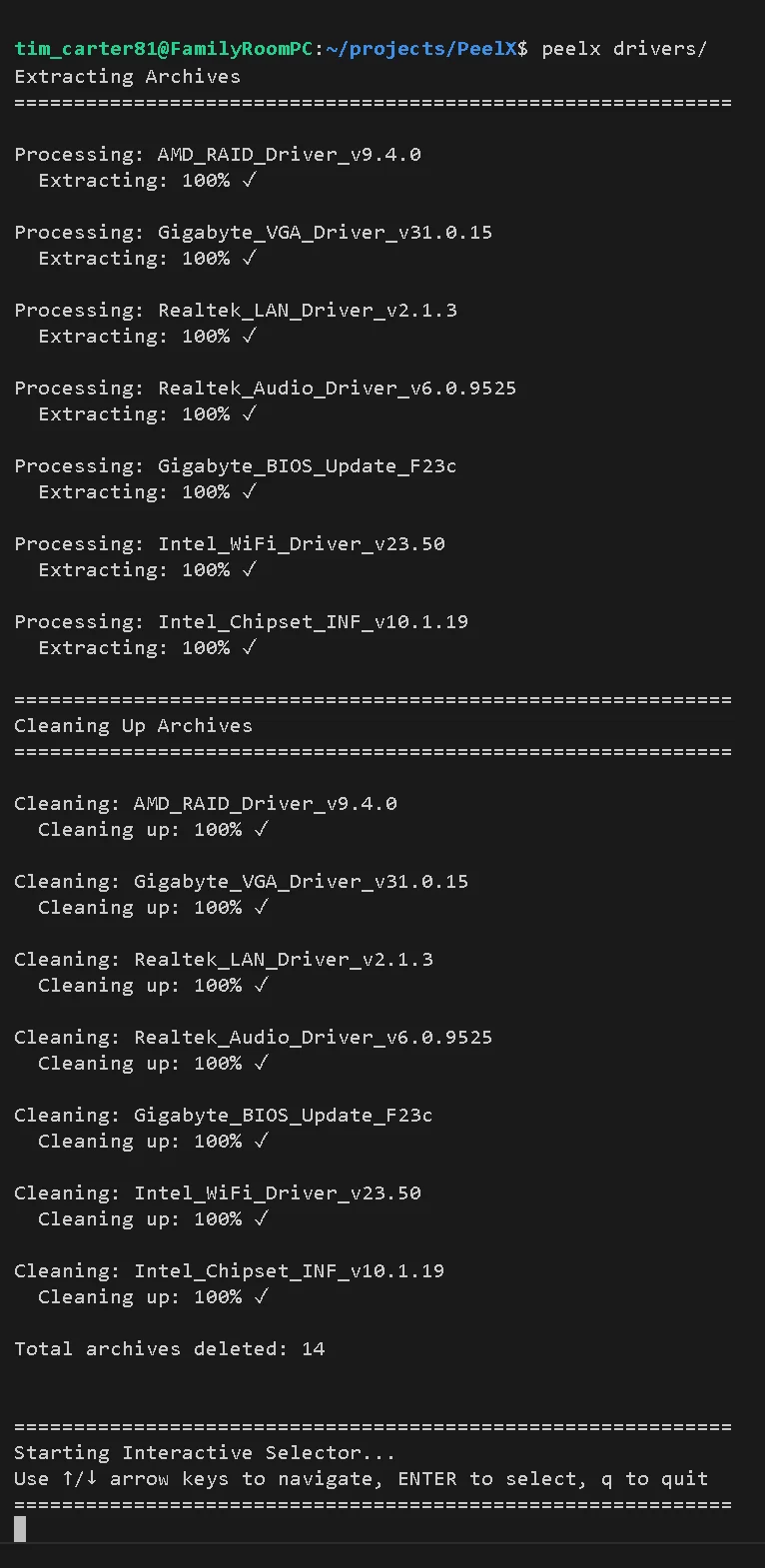
The core feature is recursive nested extraction. PeelX does not just extract the top-level archive and call it done. It scans the output for more archives and extracts those too. Then it scans again. It keeps going until there is nothing left to unpack, up to a hard limit of 50 iterations to prevent runaway loops.
This matters because archive nesting is more common than you would think. Motherboard vendors love it. You download a ZIP from Gigabyte's site and inside is a RAR. Sometimes that RAR contains another ZIP. PeelX peels all of them without you having to think about it.
Split Archive Support
Multi-part archives are handled automatically. PeelX detects split patterns like .r00 through .r99, .z01 through .z99, .001 through .999, and .7z.001 sequences. It finds the main archive file, extracts from it, and cleans up every split part afterward.
You do not need to tell PeelX which file is the "first" part. It figures that out on its own.
Automatic Cleanup
After extraction, PeelX removes everything you do not need:
- Archive files (.zip, .rar, .7z, .tar, .gz, .bz2, .xz)
- Split archive parts (.r00-.r99, .z01-.z99, .001-.999)
- Checksum files (.sfv, .md5, .sha1, .sha256, .crc)
- Parity files (.par2)
NFO files and actual content are preserved. You are left with clean directories containing only the files that matter.
The Interactive Selector
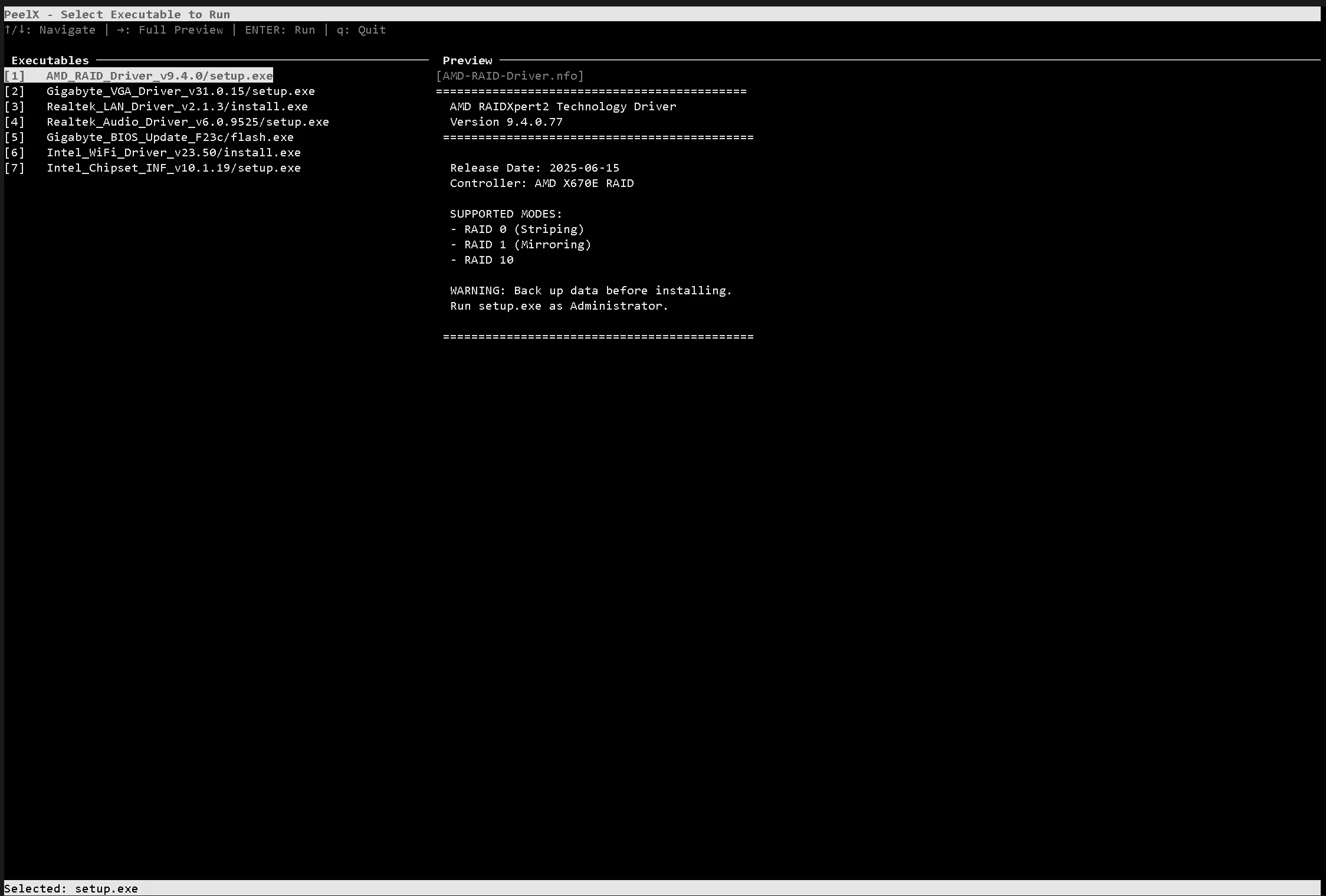
After extraction finishes, PeelX launches a curses-based interface that lists every executable it found across all your extracted folders. Navigate with arrow keys and press Enter to run.
The right side of the screen shows an NFO or README preview for whichever executable is highlighted. Press right arrow to expand the preview to full screen, left arrow to go back.
NFO and README Auto-Detection
PeelX looks for info files associated with each executable using priority-based matching. It checks for exact name matches first, then common readme filenames, then any info file in the same directory, then parent directories. It supports .nfo, .txt, .diz, and .readme extensions.
The preview panel handles multi-encoding rendering. NFO files are notorious for using legacy encodings like CP437 for ASCII art. PeelX tries UTF-8 first, then falls back through Latin-1, CP437, CP1252, and ISO-8859-1 so the art actually renders correctly instead of turning into garbage characters.
Execution Tracking
Every executable you run gets marked with a green highlight and a run count. This state persists to an executions.log file, so if you close PeelX and come back later, it remembers which installers you have already run. When you are working through fifteen driver installers and Windows wants to reboot in the middle, this is a real time saver.
Supported Formats
| Format | Extensions | Dependencies |
|---|---|---|
| ZIP | .zip | Built-in |
| TAR | .tar, .tgz, .tbz2 | Built-in |
| GZ | .gz | Built-in |
| BZ2 | .bz2 | Built-in |
| XZ | .xz | Built-in |
| RAR | .rar, .r00-.r99 | rarfile or system unrar |
| 7z | .7z, .7z.001+ | py7zr or system 7z |
The core formats work out of the box with zero dependencies. RAR and 7z require either the Python libraries or the system tools to be installed.
Installation
From PyPI
# Core install (ZIP, TAR, GZ, BZ2, XZ built-in)
pip install peelx

# Full install with RAR and 7z support
pip install peelx[all]
Windows Standalone
Download peelx.exe from the GitHub Releases page. No Python required. Drop it in your PATH or run it directly from the download location.
From Source
git clone https://github.com/TheDecipherist/PeelX.git
cd PeelX
pip install -e .[all]
CLI Options
peelx [directory] [options]

Positional:
  directory              Directory to scan (default: current directory)

Options:
  --dry-run              Preview all actions without extracting or deleting
  --backup               Create backup copies before deleting archives
  --no-interactive       Use simple text menu instead of curses UI
  --debug                Show detailed output with individual file names
  -h, --help             Show help message
The --dry-run flag is worth knowing about. It walks through the entire process -- scanning, detecting archives, identifying what would be extracted and deleted -- without actually touching any files. Good for verifying what PeelX will do before you let it loose on a directory.
The --backup flag copies archive files to a backup location before deleting them. For when you want the cleanup but want a safety net.
Cross-Platform Support
PeelX runs on Windows, Linux, macOS, and WSL. On WSL it auto-detects the environment and converts paths so Windows executables launch correctly through the Linux shell. You can extract archives in your WSL filesystem and run the resulting .exe files without manually translating paths.
Building a Windows Executable
PeelX includes a build script that packages everything into a standalone .exe using PyInstaller:
peelx-build-exeThe script installs any missing build dependencies and produces a single-file executable at dist/peelx.exe. It has to be run on Windows since PyInstaller builds for the current platform.
The Real Use Case
PeelX was built for a specific scenario that happens more often than anyone admits. You are setting up a new machine. You have fifteen driver downloads from various manufacturer sites. Each one is archived differently -- some are ZIPs, some are RARs, some are 7z files, and a disturbing number of them contain more archives inside.
The manual approach takes twenty to thirty minutes of clicking through extraction dialogs, navigating into nested folders, finding installers, running them, going back, cleaning up the archive debris, and repeating. PeelX turns that into one command and an interactive list you can tab through.
It is a small tool that solves a small problem, but it is the kind of small problem that wastes a surprising amount of time when it comes up.
Discussion
0 commentsLoading comments...